Features

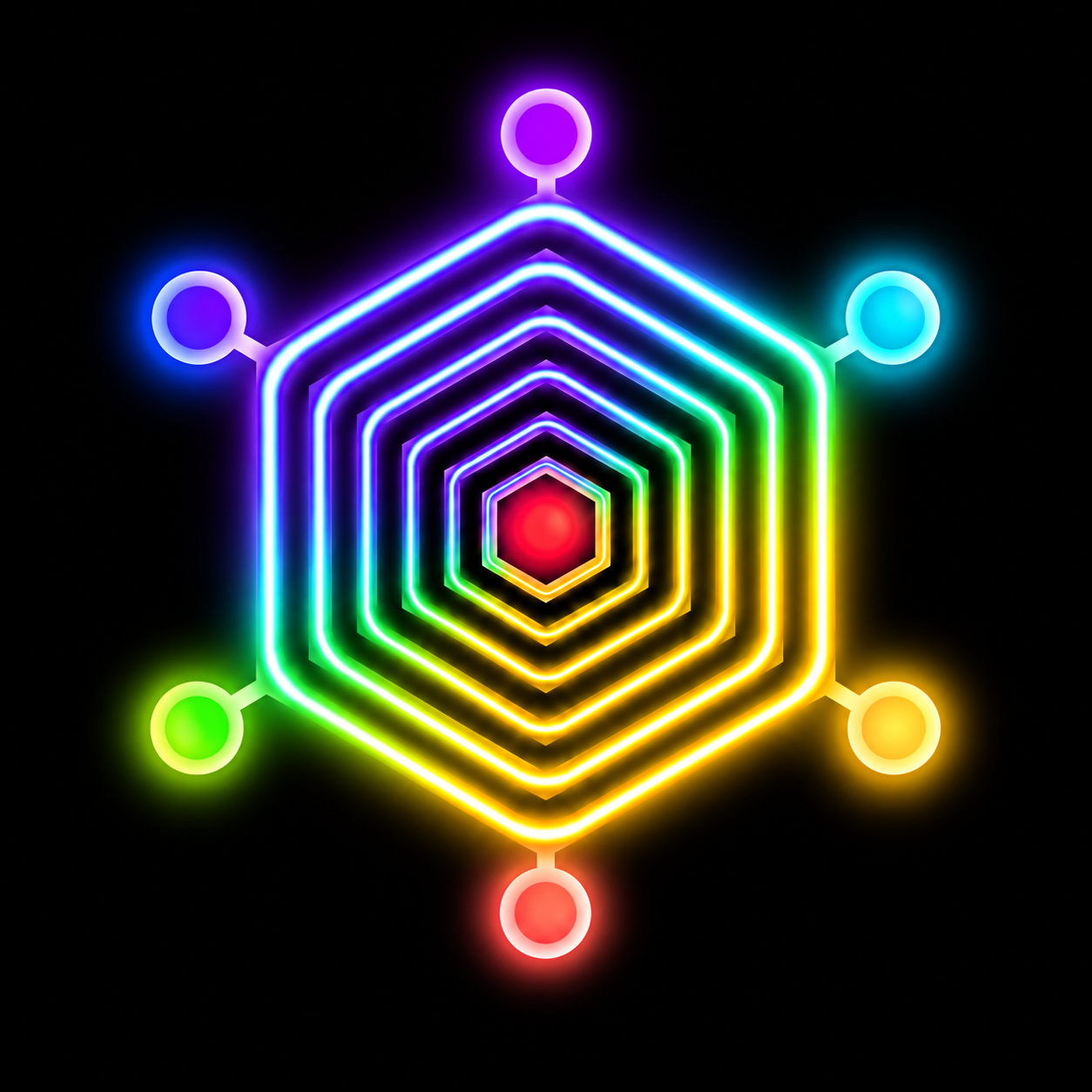
Everything around the medallion

HIT Frequency grows with you, from one habit to full programmes and group lessons. It all works offline, on your phone.

EXPLORE THE APP

Every tool.
A clearer way to use it.

Choose a feature to open its step-by-step guide.

01Rate with intentionColour conditions

A colour is a standard you confirm, not just a mood or a tick.

  1. Open the conditions for your habit and read what each colour asks of you.
  2. Choose the colour that honestly reflects how you did the habit. Every condition in its checklist must be checked before confirmation.
  3. Keep the original HIT checklist, or use Pro to create condition presets with your own questions for each colour.

Red

I did not do it.

Orange

I rushed it without care.

Yellow

I did the minimum.

Green

I did it neatly, with care.

Blue

I did it well and on time.

Purple

I added extra care and attention.

Violet

I brought exceptional care and a personal touch.

A useful custom condition is something you can answer honestly: “I completed every planned part” or “I checked my work.” A higher colour should describe a higher standard.

02Two ways to check inQuick rate & Full immersion

Choose a fast check-in or make your rating a deliberate moment.

  1. Quick rate lets you tap a colour for a shorter interaction.
  2. Full immersion uses a press and hold with the colour’s visual sequence, sound and haptics where enabled.
  3. Follow the conditions, hold through the confirmation, then see the saved colour on your habit.

The website’s hold demo illustrates the interaction. It does not save a real habit or reproduce your phone’s physical vibration.

03A challenge for each life areaPro Challenge / Ranked mode

Ranked adds a progression system to your habits. It can sit alongside Simple or Advanced tools.

  1. Open Settings and enable Ranked under Challenge mode with Pro.
  2. Each life area shows a rank bar. The progression runs F, E, D, C, B, A, S.
  3. Your area’s daily rating affects its progress. Stronger results can add XP; lower results can subtract it. The standard gets stricter as your rank rises.
FEDCBAS

Ranks describe progress inside your own habit system. They are not a public leaderboard or a cash reward. Unranked remains available if you prefer tracking without ranks.

04Your day at a glanceLife areas & the living medallion

Organise your habits across up to six life areas and make their names and appearance yours.

  1. Choose the life areas that matter to you. Rename them and select their icons and colours.
  2. Add habits to the relevant area. Area edits save automatically.
  3. Read the medallion’s colours to see where you met your standard and where to focus next. Drag it to explore its depth.

Red is a prompt to focus on that area. It is not a judgement of you as a person.

05Give your intention a placeHabit cards, schedules & reminders

A habit card brings its timing, rating and journal together.

  1. Create a habit in a life area, give it a clear name and choose its schedule.
  2. Set reminders to bring it back to your attention when needed. Your phone’s notification and alarm permissions affect delivery.
  3. Open the card to rate it, review the relevant day or add a journal entry.

When changing a schedule, use the app’s day-specific or future-day option to control when your edit applies.

06Keep the story behind the colourJournal, threads & templates

Write more than a rating: record what happened and keep related entries together.

  1. Open the journal from a habit or the Journal screen and save an entry. Written journaling is free and unlimited.
  2. Use threads to follow entries for the same name or programme over time.
  3. Choose a template when you want a repeatable structure. Where the template has tracked values, charts make those entries easier to review.

Journal text and attached media are stored on your device. Delete entries you no longer want from within the journal.

07Capture the detailVoice, photos, video & files

Journal attachments let you preserve something that words alone do not show.

  1. Choose the relevant attachment tool in a journal entry.
  2. Record a voice note, use the camera, select a photo or video, or attach a file. Grant microphone or camera permission when you use those features.
  3. Review the attachment with its entry. Media stays on the device unless you choose to share it.

Attachment allowances depend on Free or Pro. Check the in-app Pro screen for the allowance in your installed version.

08One session, individual notesGroup lessons

Keep a separate note for each person within a shared lesson or activity.

  1. Use the group lesson workflow and add the people for that session.
  2. Record each person’s note, colour and supporting media separately.
  3. Create the appropriate individual report when you need to share progress.

Check the selected person and report preview before sharing. Only record and share other people’s information with the appropriate permission.

09Share when you chooseReports, PDF & zip export

Turn journal records into a report without automatically uploading your journal.

  1. Choose the entries or person to include in a report.
  2. Review the contents and select PDF or zip as appropriate.
  3. Save the result locally or deliberately share it through your phone’s share options. Pro adds report presets and branding options.

Exports are created on your device. A shared copy is outside the app’s control, so check its contents and recipient before sending.

10Build a plan over timeHabit imports & progressive programmes

Pro imports let you bring structured habit cards and multi-week programmes into the app.

  1. Choose the habit or programme import tool.
  2. Select the supported JSON file and review the plan before importing.
  3. Follow its cards and steps over time, using ratings and journal entries to track the work.

Only import plans you understand and want to follow. The app is an organisation tool, not a substitute for professional advice.

11Break down the workTimers, duration, parts & card links

Advanced Pro tools give longer or connected activities more structure.

  1. Use duration and timers when the amount of time matters to the habit.
  2. Divide an activity into parts when it needs separate steps.
  3. Use card links to connect related habits and navigate between them.

Keep the card as simple as your activity needs. Advanced tools are optional.

12See change across daysTracker & history

Compare your ratings over time and return to previous entries.

  1. Open Tracker and choose a 2, 5 or 7-day comparison where available in your plan.
  2. Look across your life areas to find changes in consistency or quality.
  3. Open history to revisit older ratings and records. Pro provides full history.

A comparison reflects what you recorded. It is not a medical assessment or a prediction.

13Include rest in your routineSleep tracking

Keep a record of sleep alongside the habits that make up your day.

  1. Open sleep tracking and enter the relevant sleep information.
  2. Review your records alongside your routine.
  3. Use reminders where helpful to support the schedule you choose.

HIT Frequency is not a medical device and does not diagnose, treat, cure or prevent a medical condition. Consult a healthcare professional for medical advice.

14Make it feel like yoursThemes, special colours & personal media

Choose Cinematic dark or Future light, then personalise the visual experience.

  1. Select your theme in Settings.
  2. Choose life-area colours and animated special finishes such as Ocean, Sakura, Chrome or Code Rain.
  3. Explore Pro custom sounds, video and Home wallpaper options to personalise the experience further.

Effects and smoothness depend on your device and settings. The screenshots below are real native app preview captures.

15Built around your deviceOffline use, languages & privacy

The native app works offline for habits and journaling, supports nine languages and has no ads.

  1. Choose your preferred language and use the built-in guide to get started.
  2. Keep working without an internet connection on local habits, ratings and journal records.
  3. Use the Android privacy policy to understand Google Play purchase checks, permissions, device backups and differences in the older web edition.

Purchases and external services still need connectivity. Keep copies of important exported records before changing or removing the app.

Journal & threads

Write an entry for any habit on any day. Follow threads by name or by programme, use templates, and watch progress charts build over time.

  • Voice notes, photos, videos and files
  • Templates and progress charts
  • Free: 3 photos and 1 of each other kind per entry

Group lessons & private reports

Tutors and teachers can run a whole group from one card: a note, a colour and media for each person.

  • A private report for each person, as a PDF or zip
  • Individual reports keep personal notes separate; check the preview before sharing

Reports & export

Export as a PDF or a zip whenever you choose. Free exports carry a small HIT Frequency mark on photos and videos.

  • Pro removes the mark or uses your own brand
  • Pro presets: Parent report, School report, My training log

Programmes

Import a programme, a plan that runs over several weeks, and follow it inside HIT Frequency.

  • Multi-week plans
  • Journal threads by programme

Reminders

Gentle reminders at the times you choose, so habits happen when you planned them.

Sleep tracking

Keep track of your sleep alongside your habits. HIT Frequency is not a medical device.

Tracker

Compare your last 2, 5 or 7 days side by side to see what’s improving and what needs attention.

Challenge & ranked mode

Switch on challenge or ranked mode when you want an extra push.

Special colours & themes

Special colours with living effects, two themes (Cinematic dark and Future light) and responsive motion on supported devices.

Privacy

Your data stays on your phone

The native app keeps journal text and media on your device and shows no ads. Google Play handles purchases; the older web edition performs separate subscription checks. Device backup settings can affect stored records. Read the Android privacy policy for the details.

Read the Android privacy policy

Start with one habit today.

The simple tutorial takes you from your first life area to your first real rating in about a minute.

AndroidView on Google Play

iOS, PC and Mac coming soon

THE LIVING MEDALLION

Progress you can
reach out and touch.

Turn it. Explore it. Bring your day into focus.

PurposeConnectionMindBodyGrowthCalm
Drag to spin · Your life, in colour

iOS, PC and Mac coming soon